Trainer Recordings

DaDesktop offers several methods to capture desktop and course recordings: troubleshooting recordings, training room recordings, and trainer recordings.
Trainer recordings specifically capture what happens on the Trainer's DaDesktop machine. Here's how trainers can start recording their machine's session.
- Click the three vertical dots to open a small dropdown menu, then choose 'Connect (with session recording)'.
-

An audio/video recording of the Trainer machine is created, but it won't be viewable until the virtual classroom ends and the recording is finalized. Note: SuperAdmin users have an extra menu option to watch live recordings as they happen.
- To view and edit recordings, click the cog icon and open the Recordings menu.

Recordings
You can access trainer machine recordings in two ways.
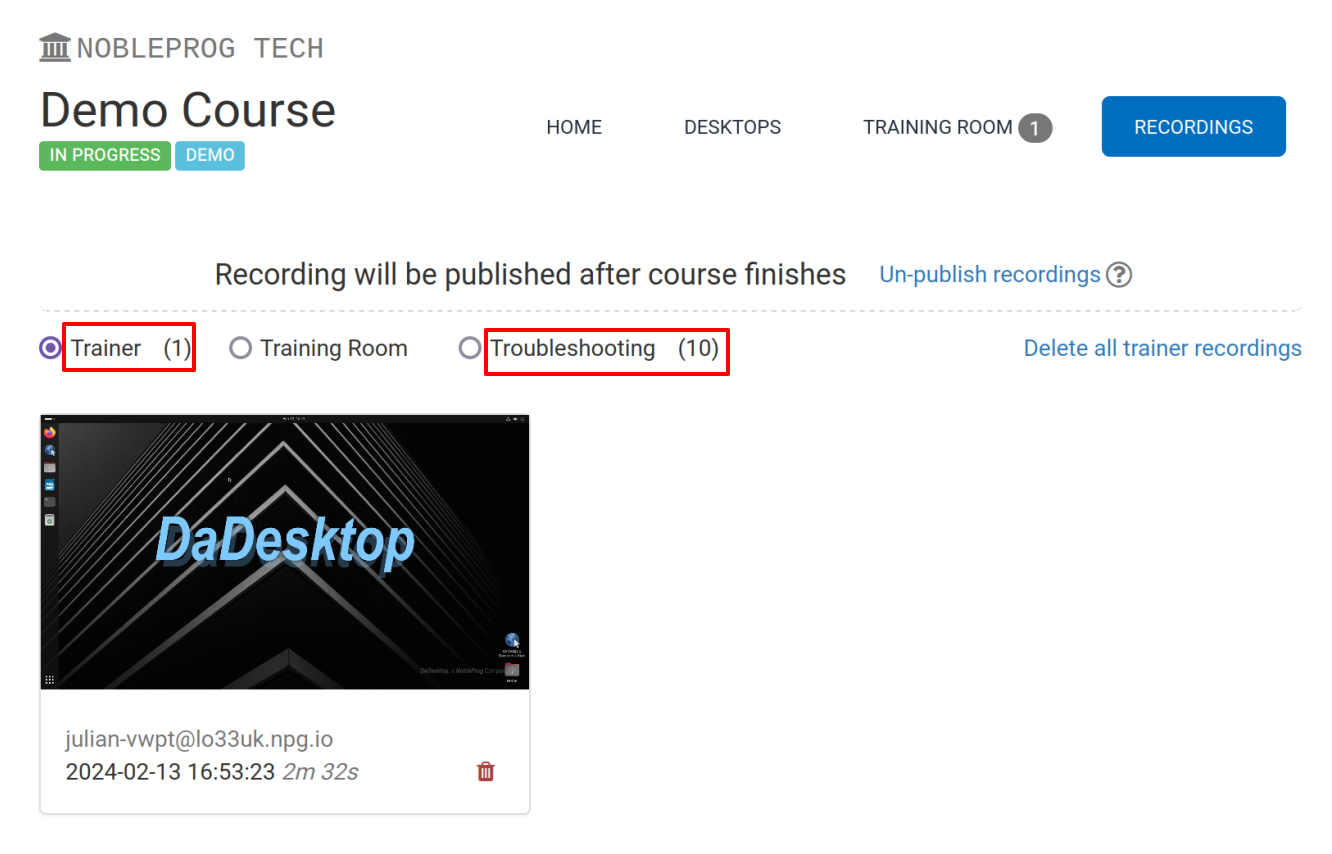
- Recordings can be viewed from the Recordings menu as above. You can play or delete them as needed. The double spanner icon indicates 'Troubleshooting Recordings' — these are automatically generated for diagnostic purposes, not for presentation, and are used only when necessary.

2. From a course's 'Recordings' tab, you can view trainer recordings, training room recordings, and troubleshooting recordings.