
Oracle Server Troubleshooting and Fixes
When setting up applications in the Fresh Start environment through DaDesktop (DD), most run without any issues. However, a few apps may not perform correctly after cloning and need some extra adjustments to get things working smoothly.
System Specifications
-
Oracle Database 19c (other versions are likely to show the same behavior)
- Installed using a Windows 10 template
Fresh Start Correction Notes
-
Keep in mind this is a generic guide for fixing the app within Fresh Start. Steps can differ depending on your exact configuration.
-
In short, the fix for Fresh Start uses the original hostname of the Fresh Start machine, but after cloning the machine name changes, making that hostname irrelevant. So we substitute 127.0.0.1 (localhost) instead. Additionally, extra database listeners may have been added that complicate things—these are best removed as shown below.
Correction Procedure
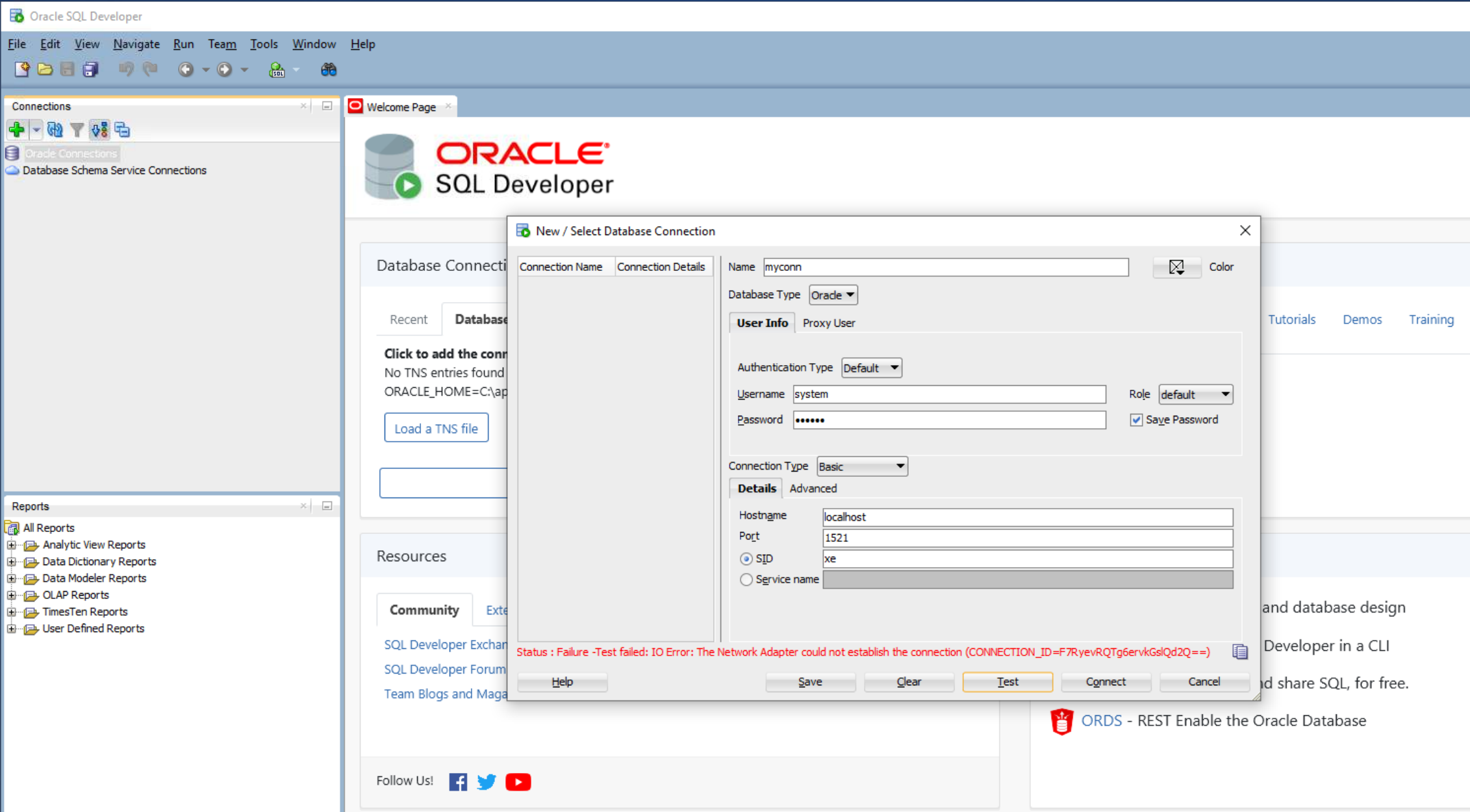
1. The image below shows a network connection failure when using Oracle SQL Developer.
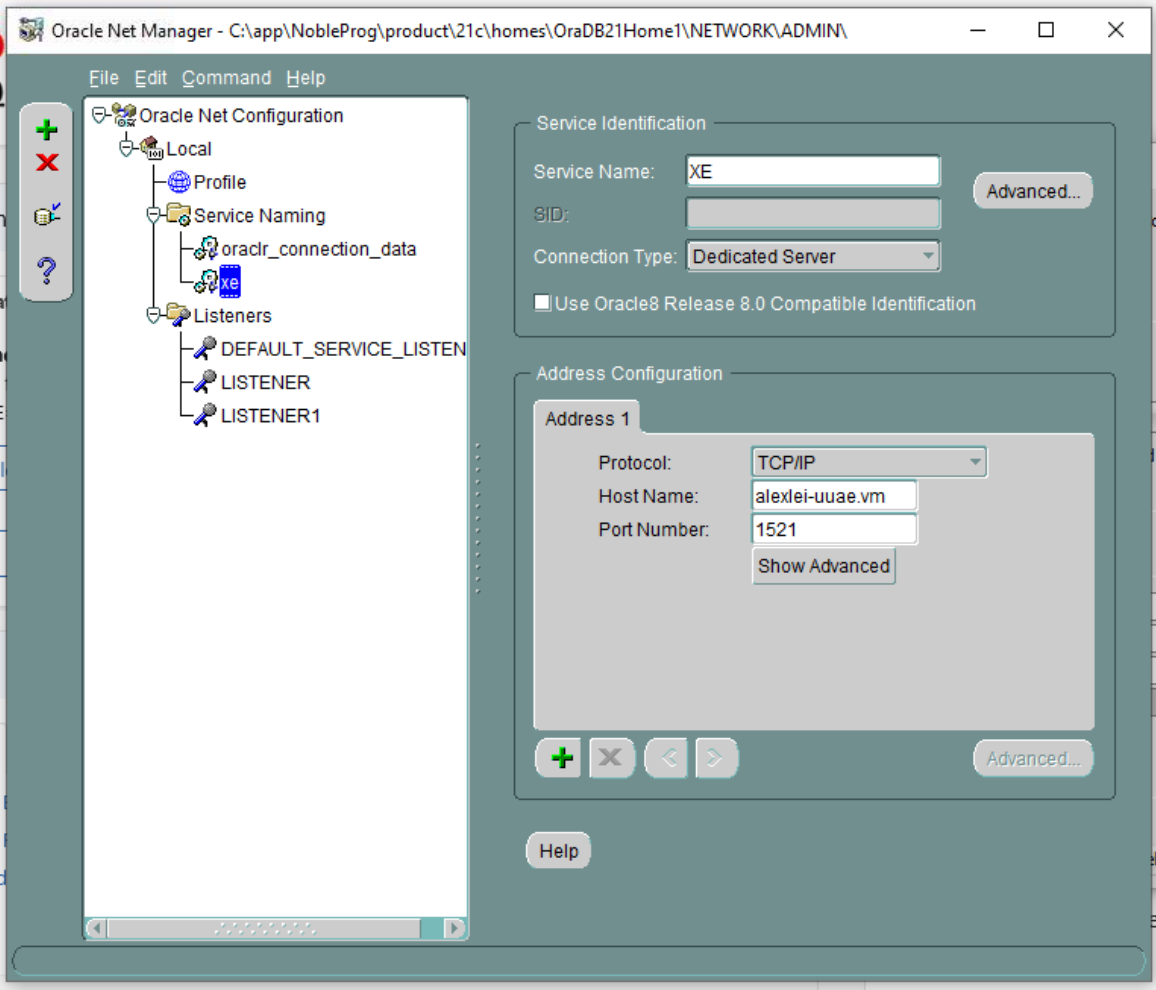
2. Open the Oracle Net Manager application.
The xe service details display, showing the original host info (in this case, alexei-uuae.vm).
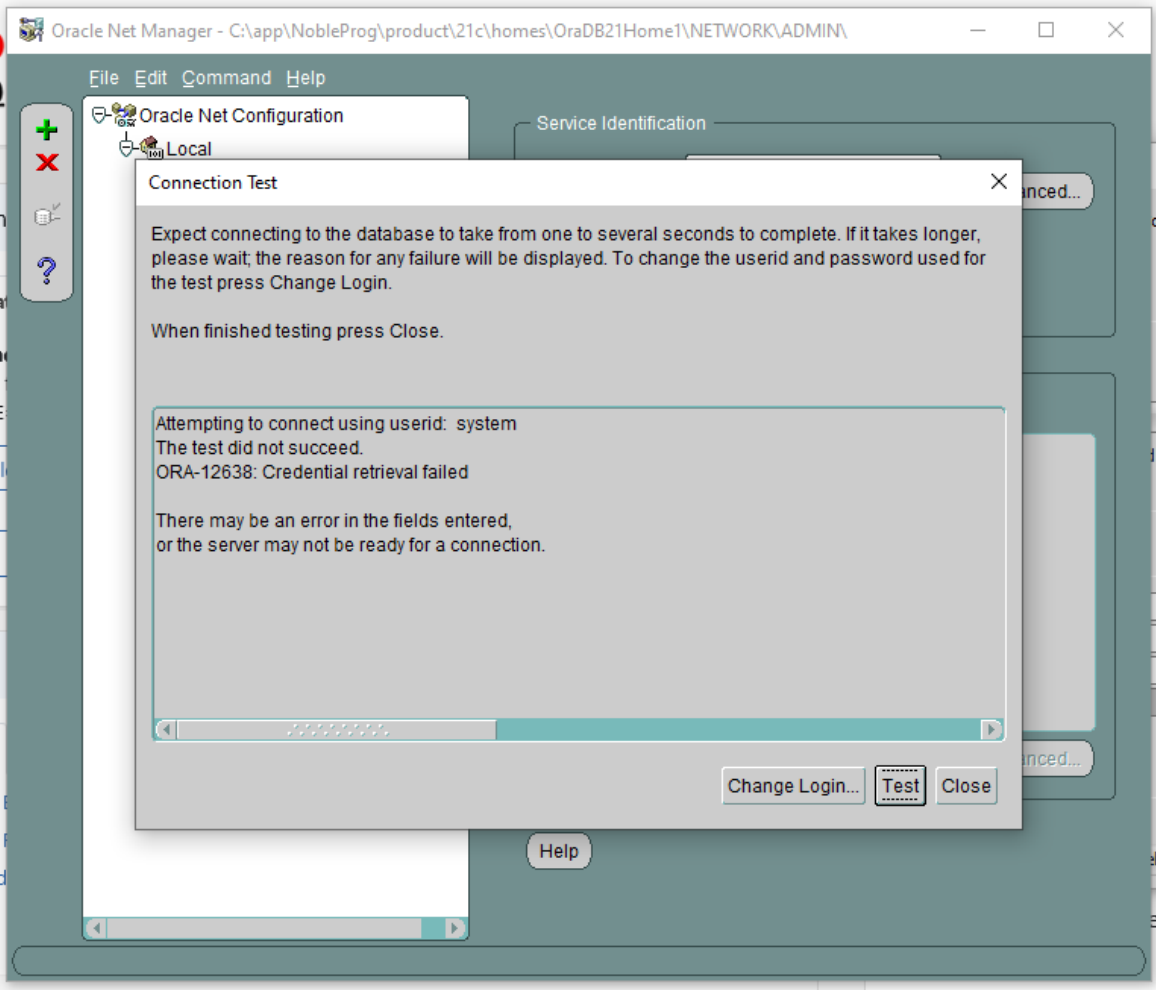
3. The connection test fails (after typing userid=system and the password).
4. In Oracle Net Manager, navigate to Listening Locations, then Listener. The host details show the original hostname 'alexei-uue.vm', which will need changing.
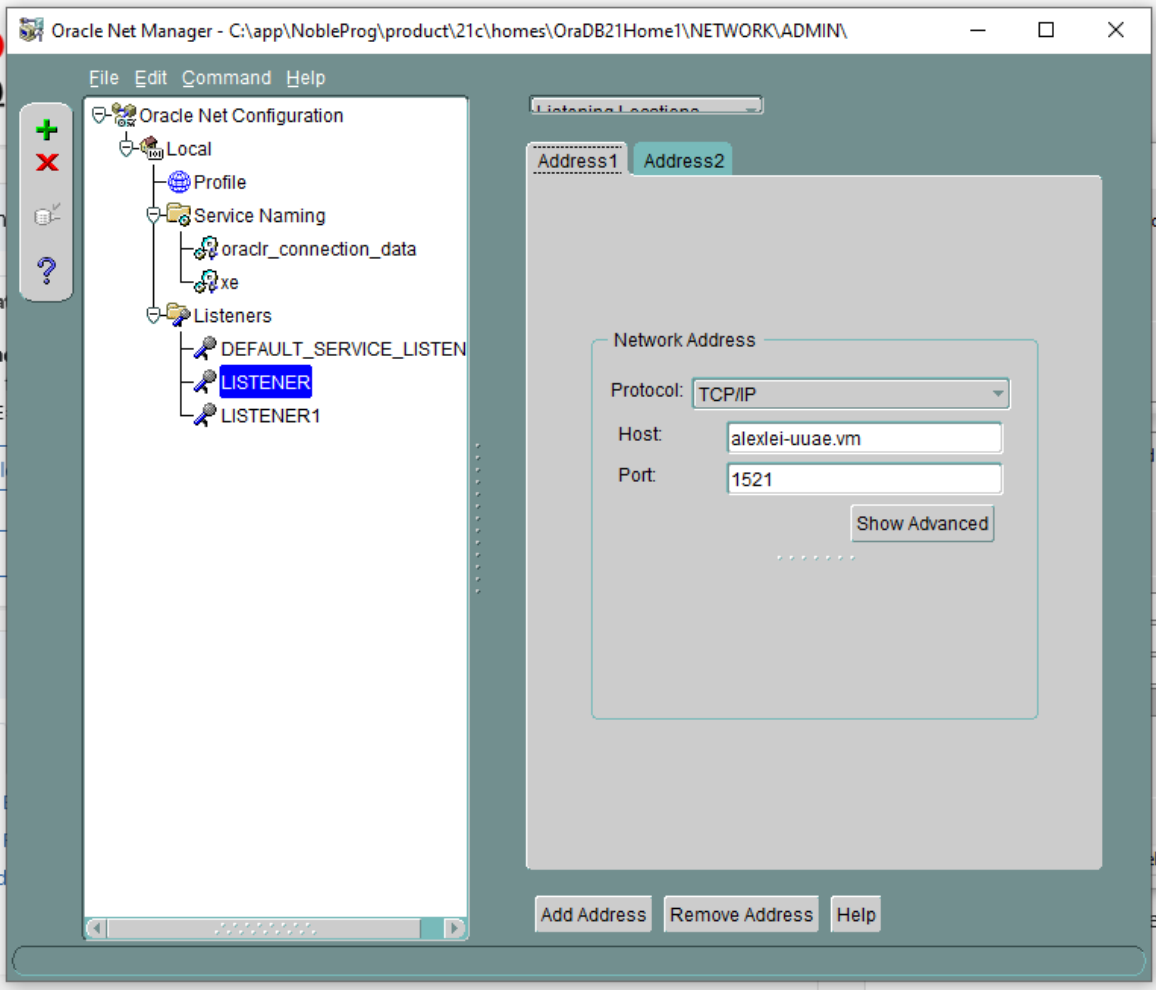
5. No databases appear configured under LISTENER1. Check for any listeners that lack database service configurations—if found, delete that listener.
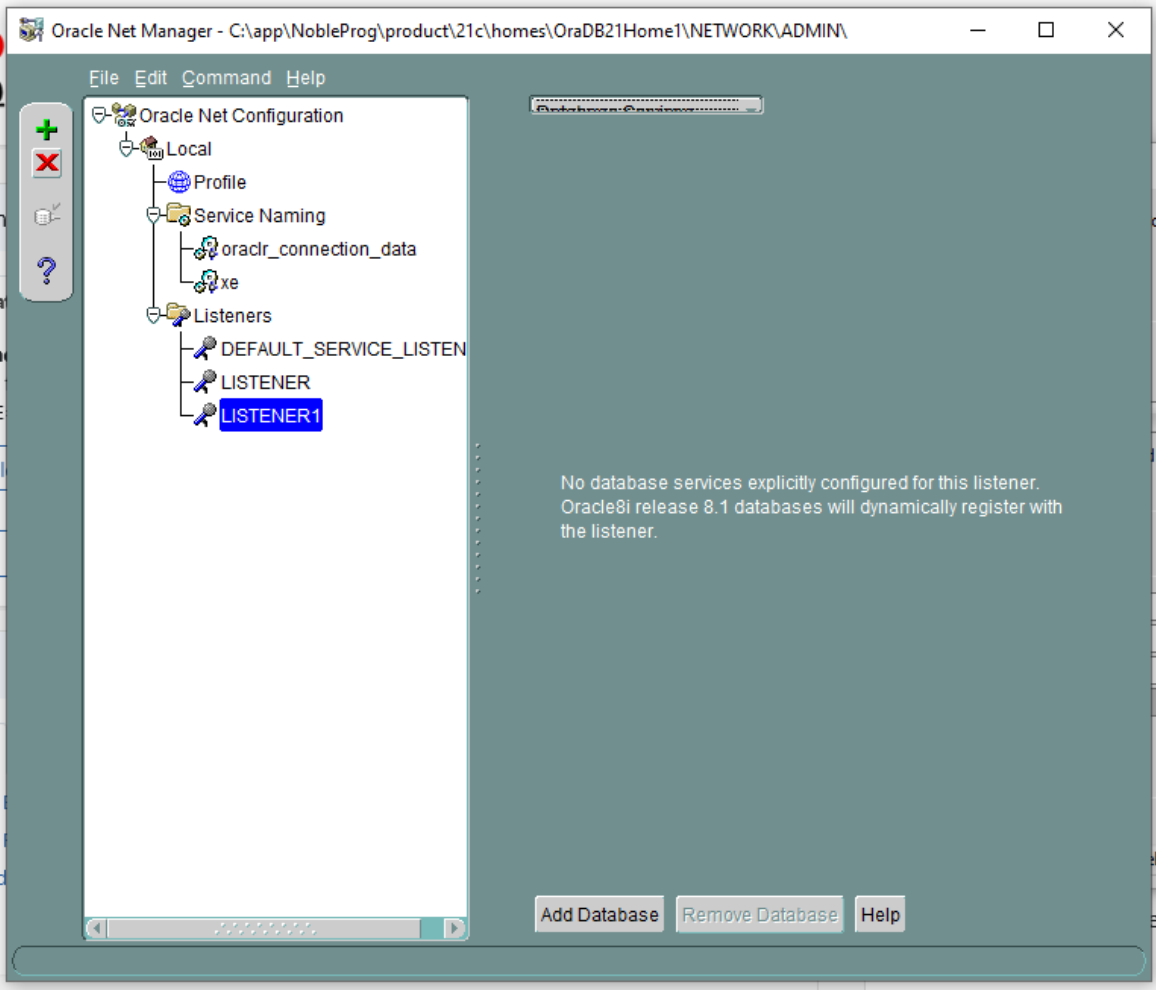
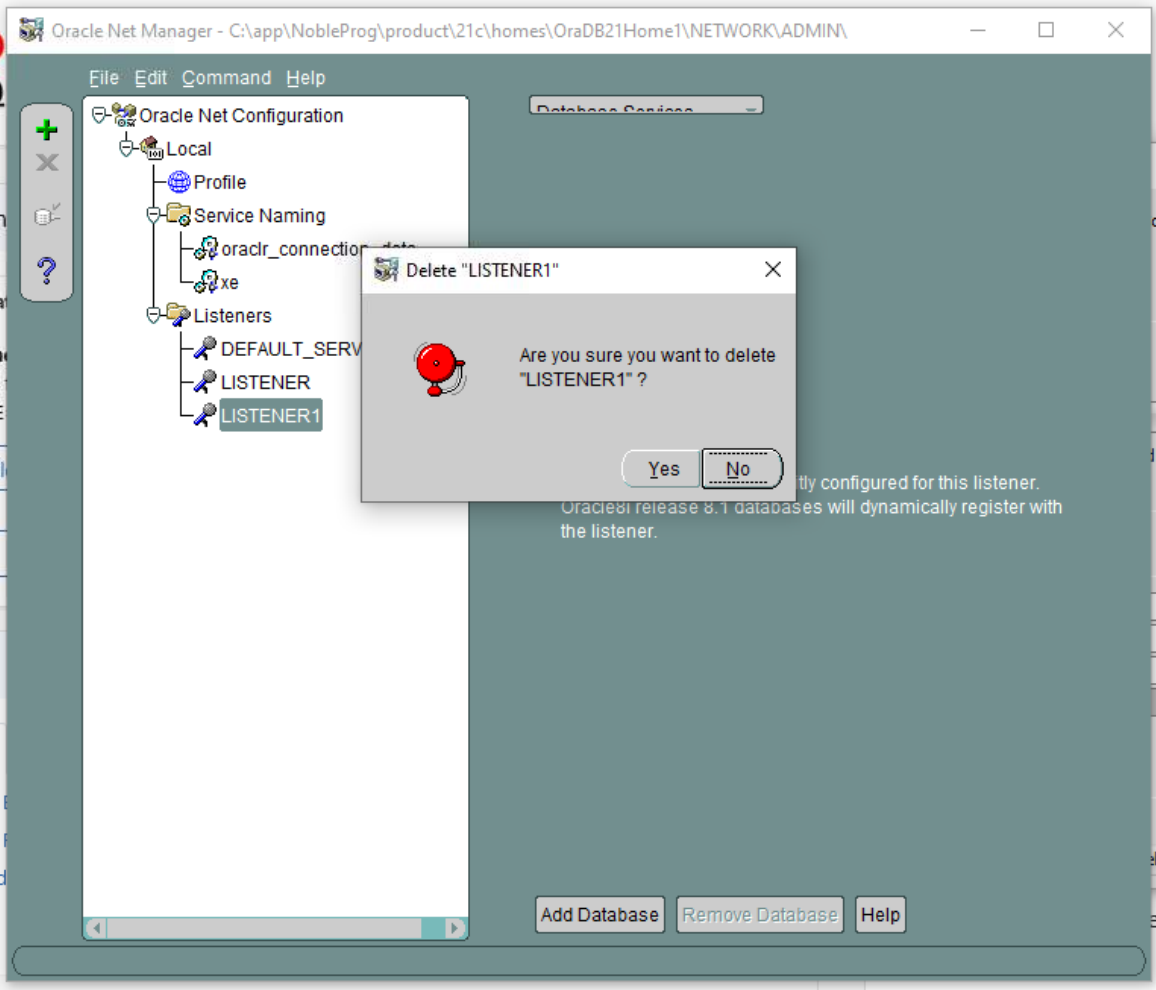
6. So, delete LISTENER1 and confirm. Note: this is an example from our setup and may not always occur, but we include it for illustration.
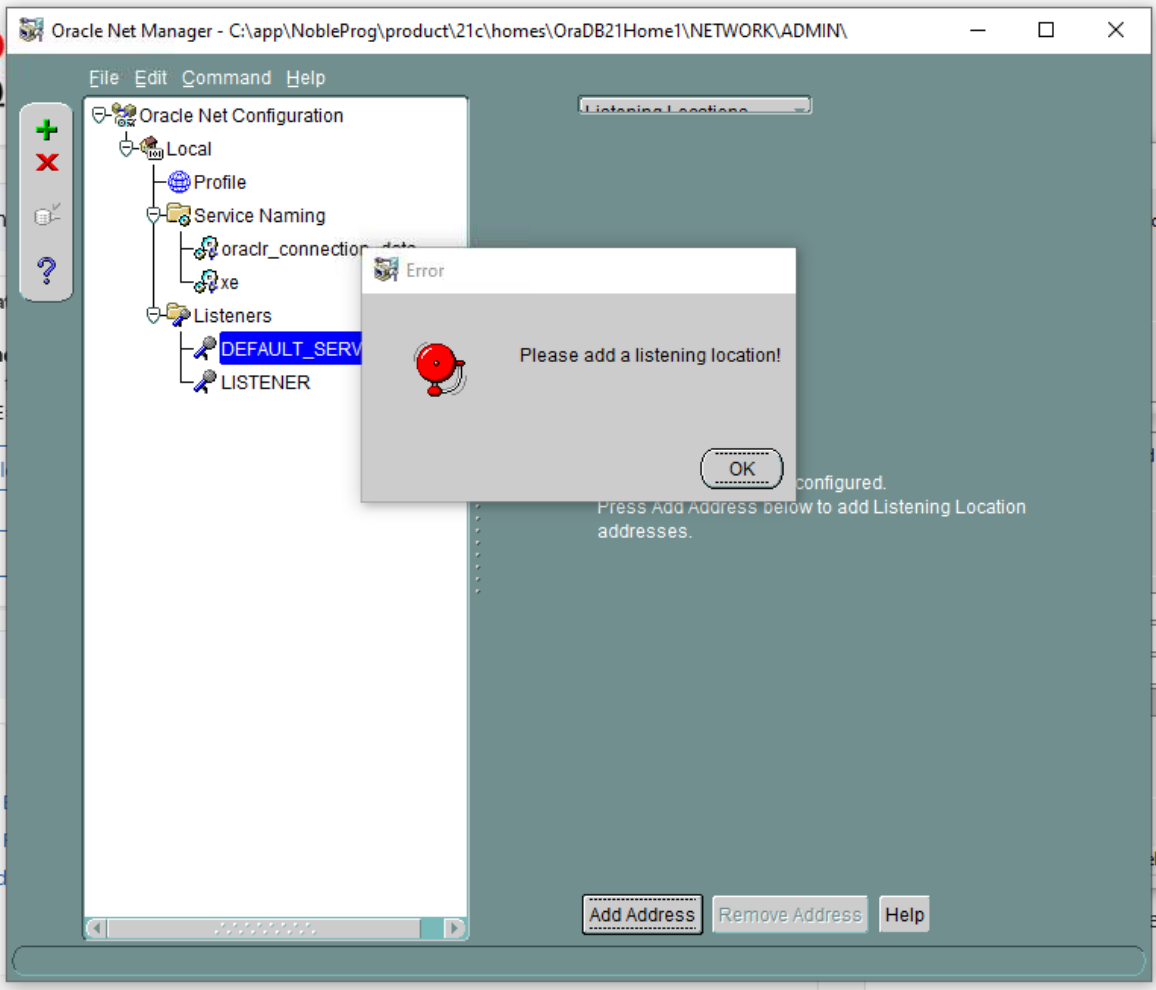
7. DEFAULT SERVER LISTENER – Go through each listener in turn; in this case, no listening location is available.
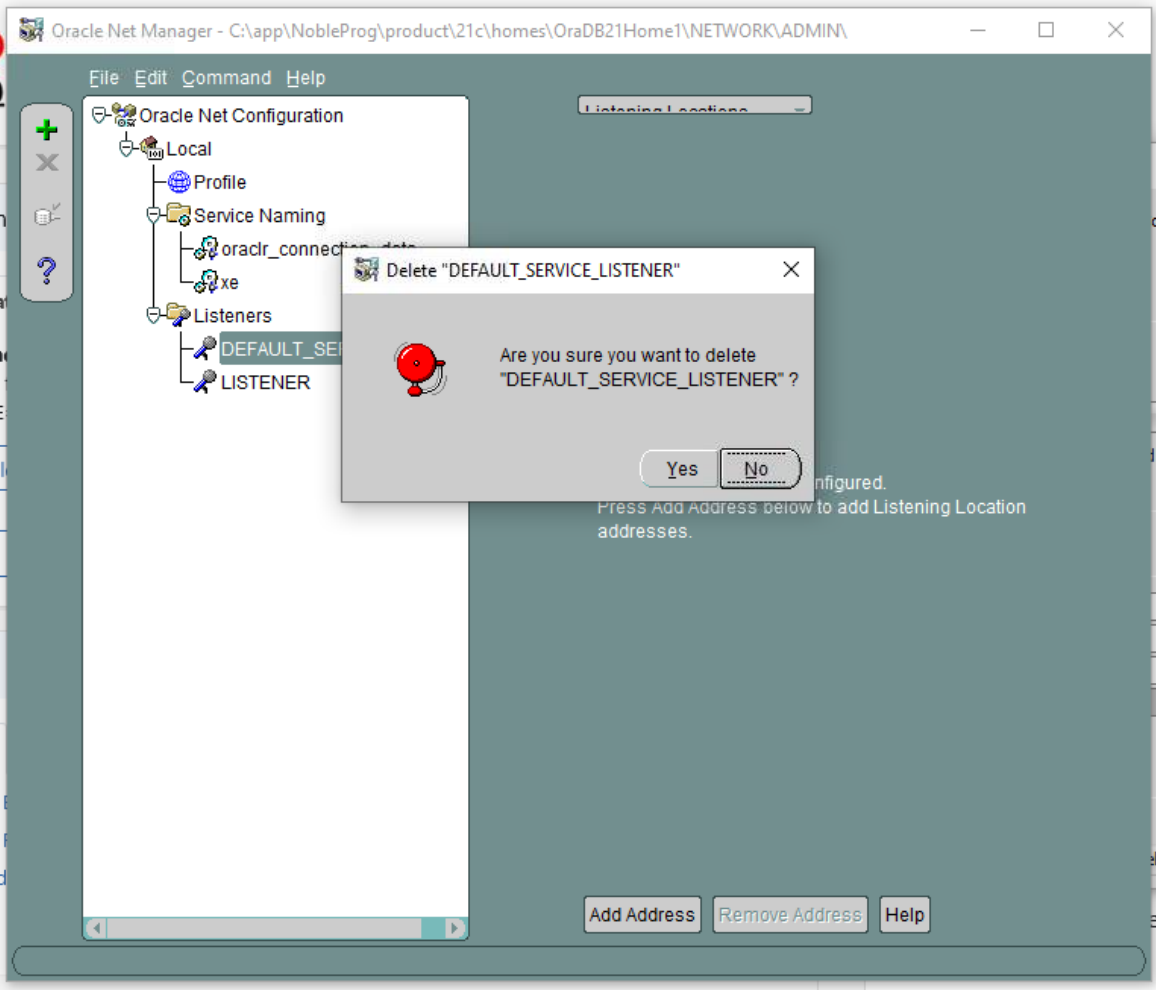
8. Therefore, delete the DEFAULT SERVER LISTENER.
9. On LISTENER (the one remaining), you’ll see the existing VM hostname that needs updating because it will change after cloning.
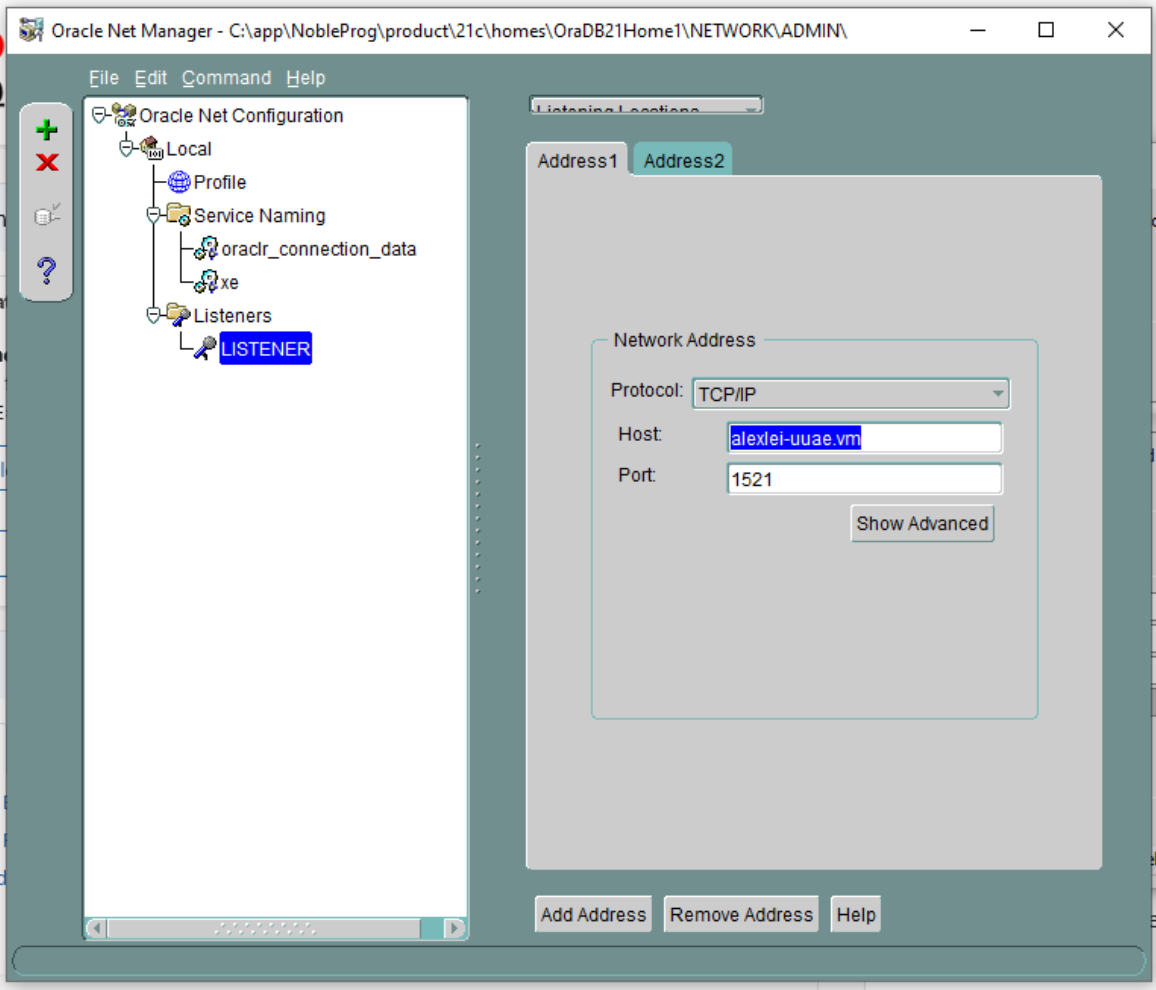
10. Change the host from the displayed value (in our case, 'alexi.uuae.vm') to 127.0.0.1, keeping the port the same.
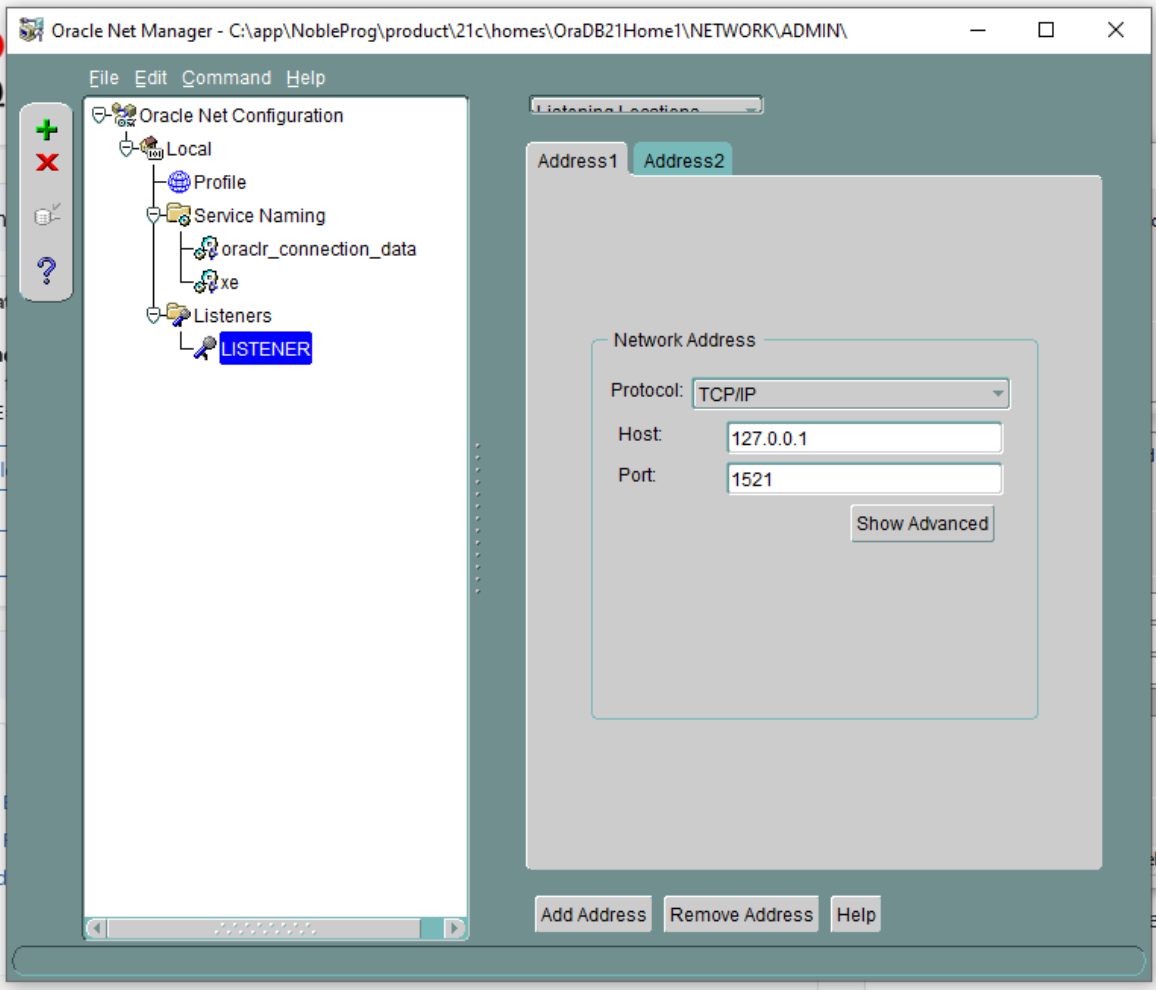
Next, configure the existing database
11. Set the SID to XE and the Global Database Name to xe.local
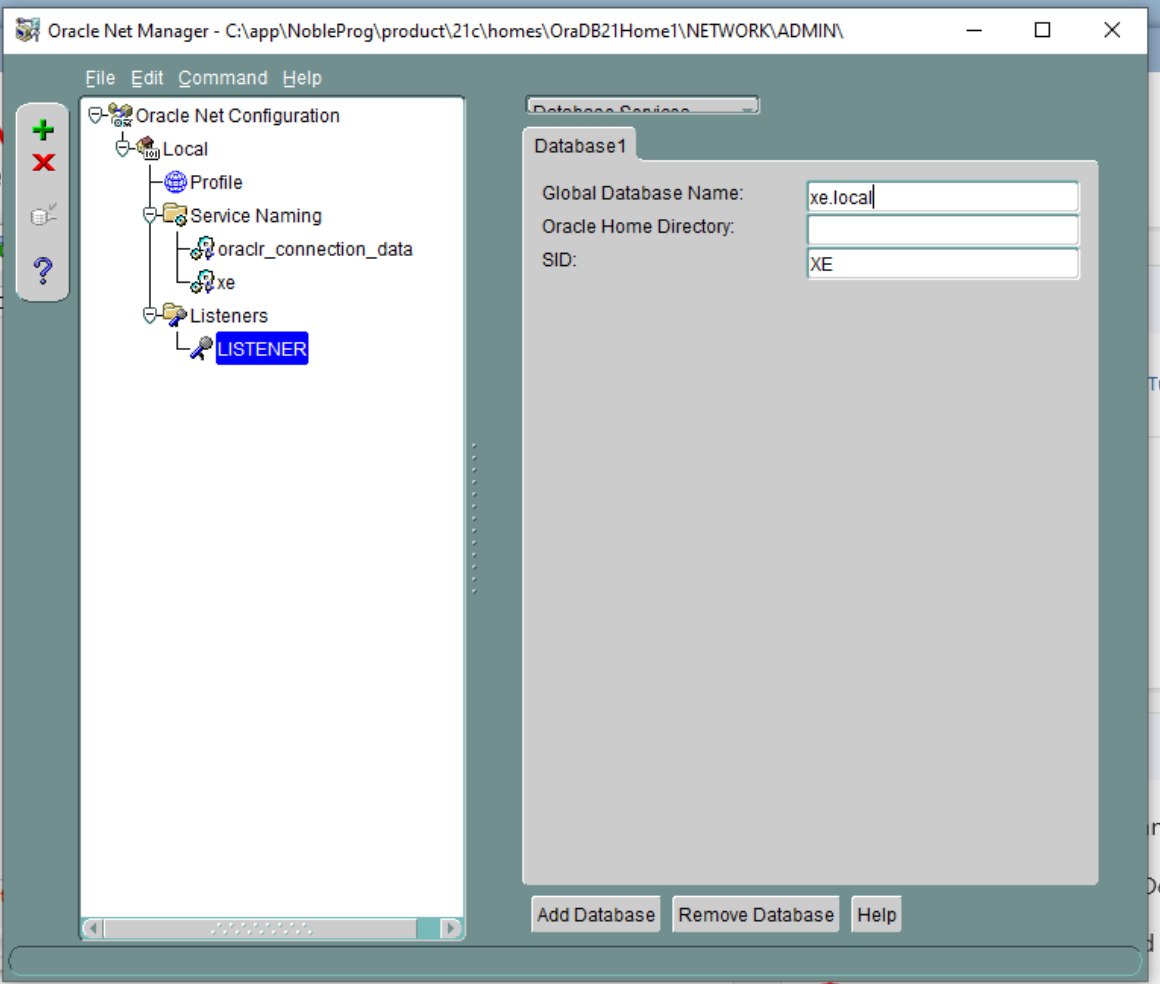
12. Save the network configuration and close the application.
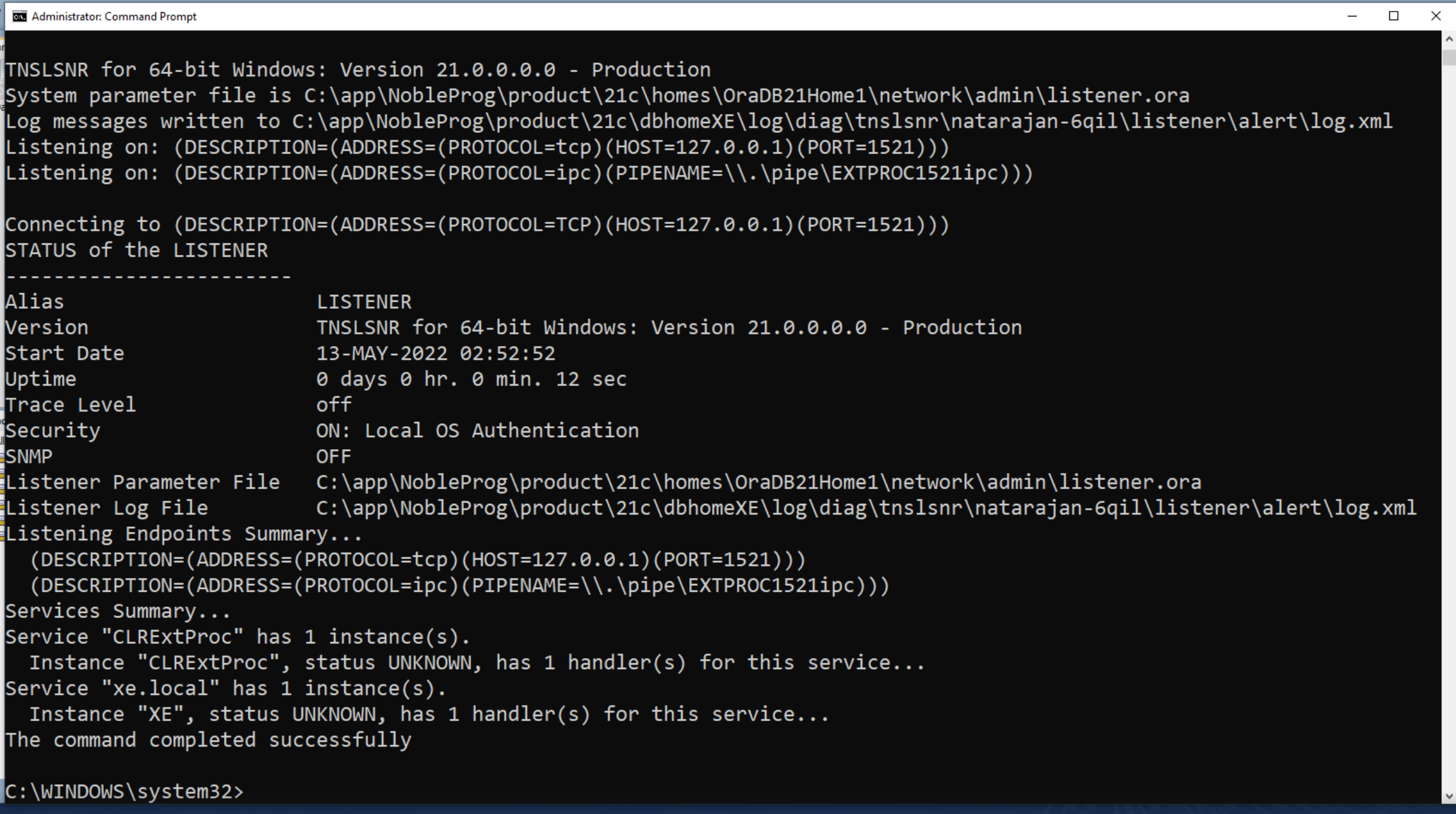
13. Open a Command prompt to restart the listener service. Type ‘lsnrctl status’, then ‘lsnrctl stop’, and finally ‘lsnrctl start’.
Launch Oracle Net Manager again.
14. Remove ‘alexei-vm’ from Service-naming-> xe section
15. Change the host to 127.0.0.1
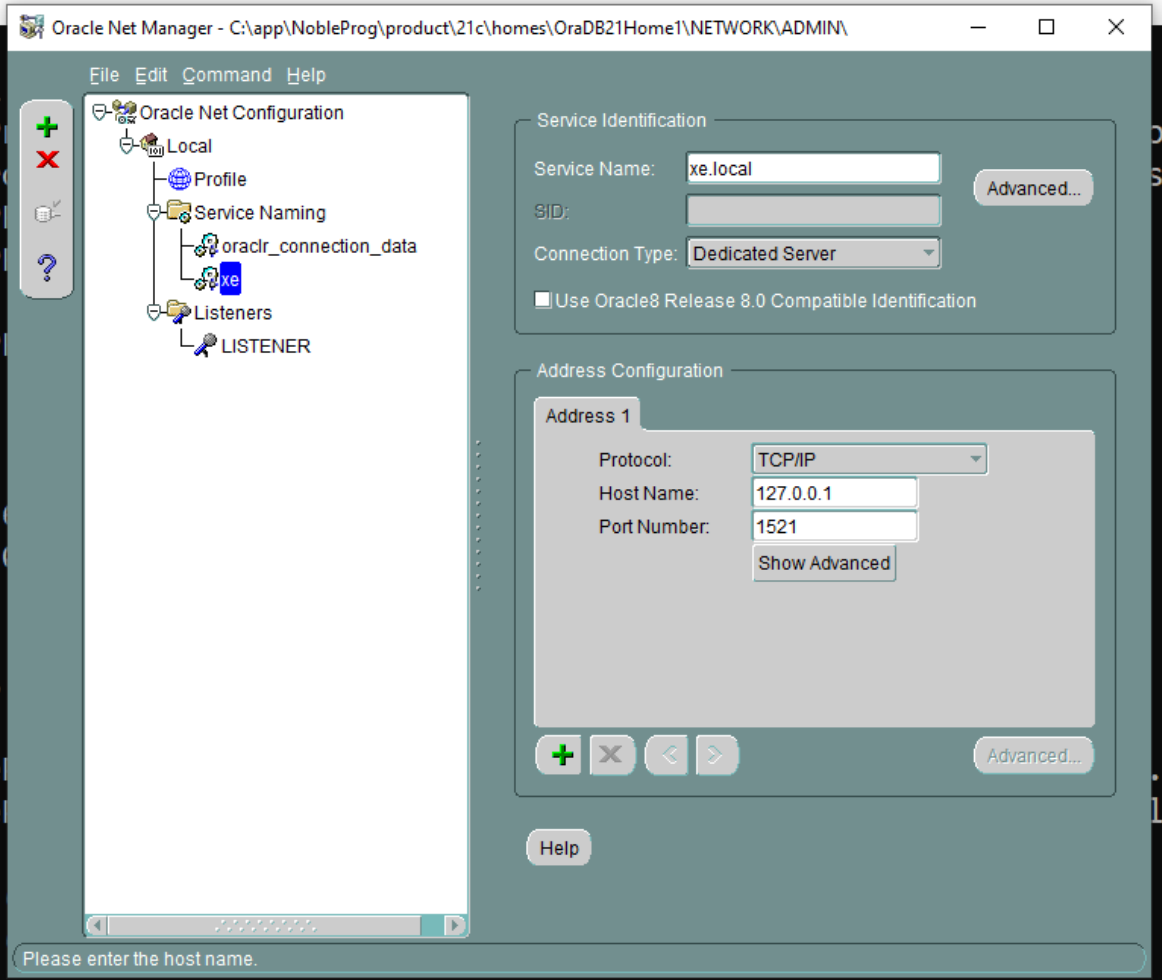
16. Save the network connection
17. Connection Test: Click the small button in the image below to trigger a Connection Test
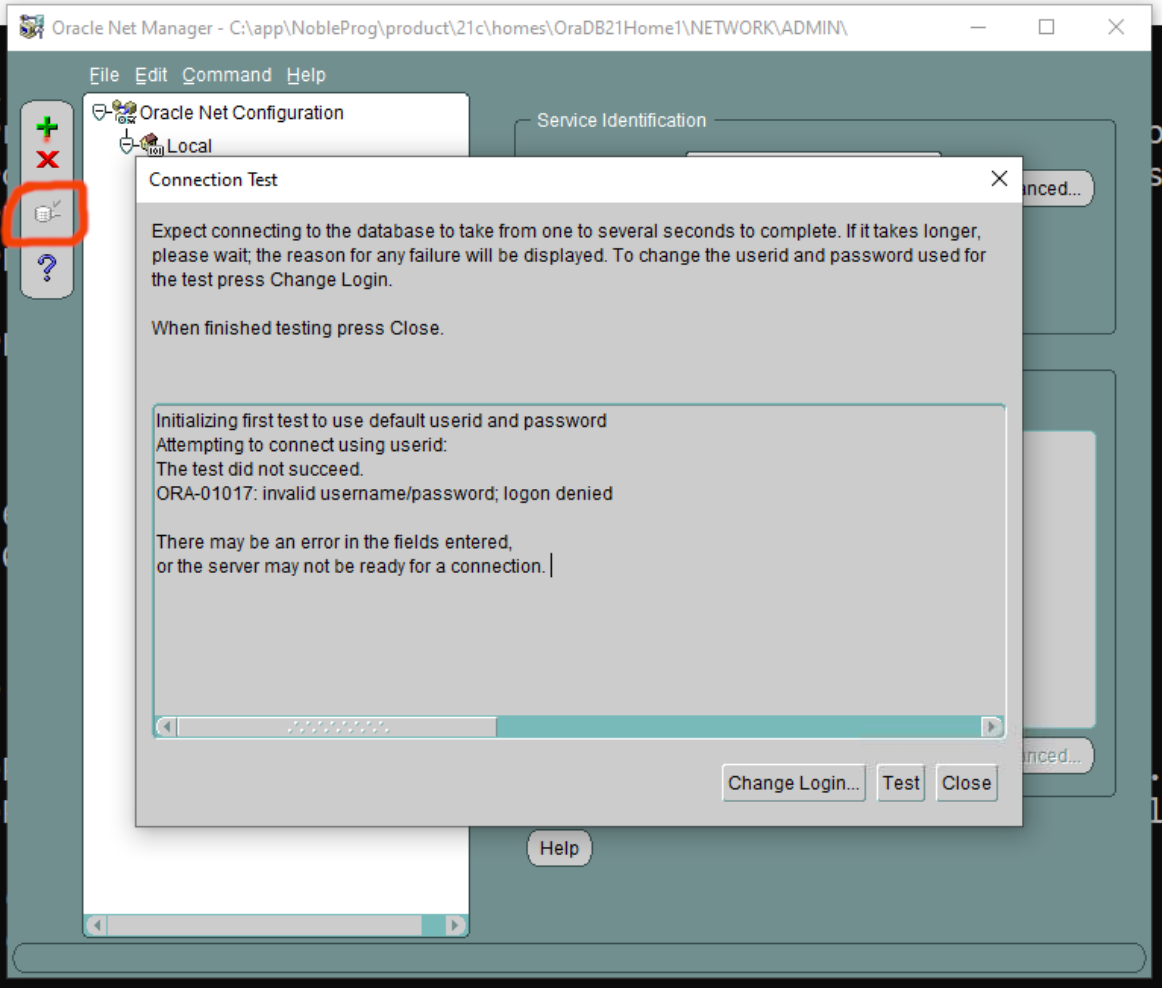
18. Change the login. Set the username to ‘system’ and enter the password.
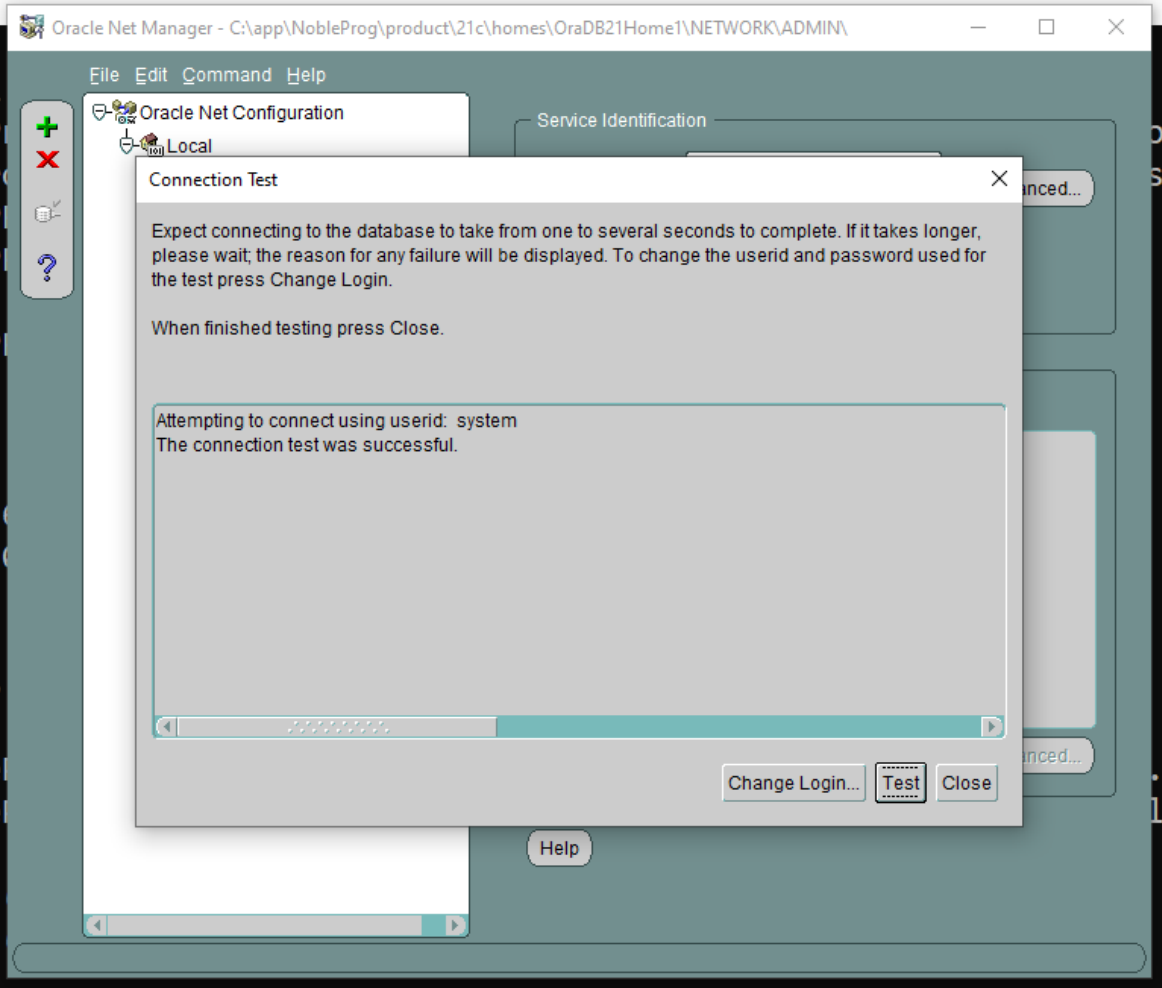
Save the network connection if needed
19. Go back to the main Oracle SQL Developer app and run the Connection Test again.
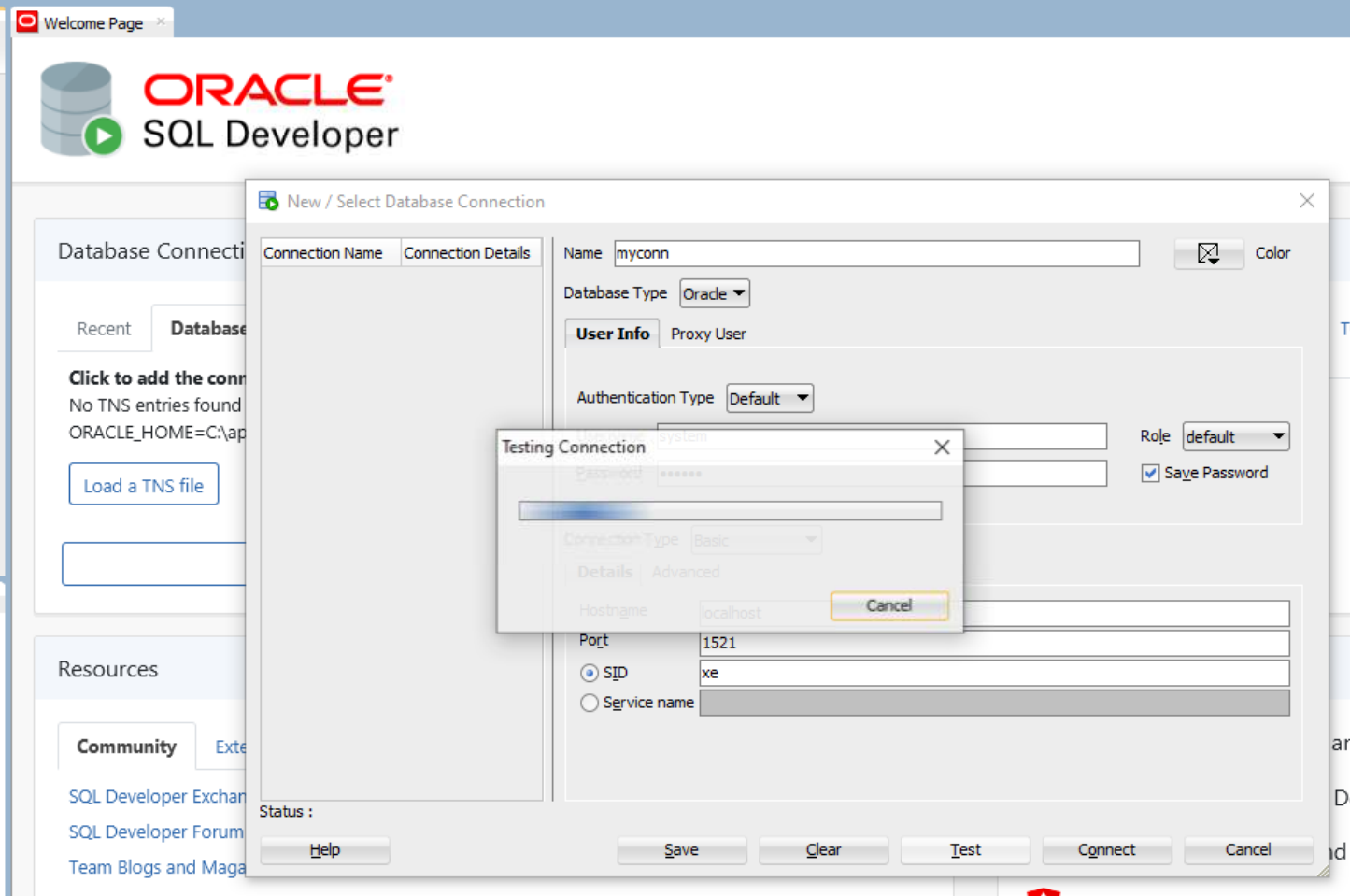
20. Assuming the connection succeeds, go to the Connections pane on the left, expand Oracle Connections, and confirm that database tables appear as expected.
21. Continue with the FreshStart machine configuration as needed, then clone the FreshStart machines to the Trainer and Participant machines.
The Oracle Database server should now operate correctly on both Trainers’ and Participants’ machines.
If you still run into trouble, contact DaDesktop Support via the chat app, and we’ll be glad to help.